How to Set Up Residential Proxies in Octo Browser (with Screenshots)
Published: 3 August 2026 · Tested on Octo Browser 3.0.7 (macOS) · Every step shown on a real profile
TL;DR: Octo Browser gives each profile its own fingerprint and derives its timezone, locale and geolocation from the proxy — so set the proxy before you create the profile. Click Create Profile, name it, open Proxy → Set a new proxy, and fill the fields separately: type SOCKS5 (or HTTP), host gw.roamproxy.com, port 41080, login yourname-country-us, then your password. Hit Check Proxy, wait for "Proxy connection succeeded", Confirm, then Create Profile and start it. Note that Octo has no permanently free tier — but it emails a free 2-day Starter trial after signup, which is enough to complete this entire guide.
Octo Browser is one of the more polished antidetect browsers, and it is stricter than most about one thing: the fingerprint it builds is anchored to the IP you give it. Open the profile form and you'll see Languages, Timezone and Geolocation all set to "Based on IP" before you've typed anything. That is the right default, and it has a practical consequence — the proxy is not an afterthought you bolt on later, it's the input the rest of the fingerprint is computed from. Here's how to give an Octo profile a Roam residential exit, no plugin required.
Step 1 — Get your Roam credentials
Sign up at roamproxy.com, top up from $2, and copy three things: your proxy username, your proxy password, and the gateway gw.roamproxy.com:41080. HTTP and SOCKS5 share the same port, so you can pick either in Octo. Append -country-<cc> to the username to choose the exit country, and -session-<id> to keep the same IP across launches.
Worth knowing before you start: Octo Browser has no permanently free plan — clicking Create Profile on a fresh account opens the "Choose your plan" screen instead. Octo does email a promo code for a free 2-day Starter trial shortly after you register; redeem it on that same screen under Have a promo code? and the profile limit unlocks immediately. Everything in this guide was done on that Octo trial; on the Roam side, a $2 top-up (plus the +50% first-top-up bonus) is more than enough to follow it end to end.
Step 2 — Create a new profile
On All profiles, click the blue Create Profile button. On the General tab, give the profile a name you'll recognize — we used "Roam US Residential". The Summary panel on the right previews what this profile will present: user agent, OS, font count, screen resolution, and the three IP-derived values mentioned above.
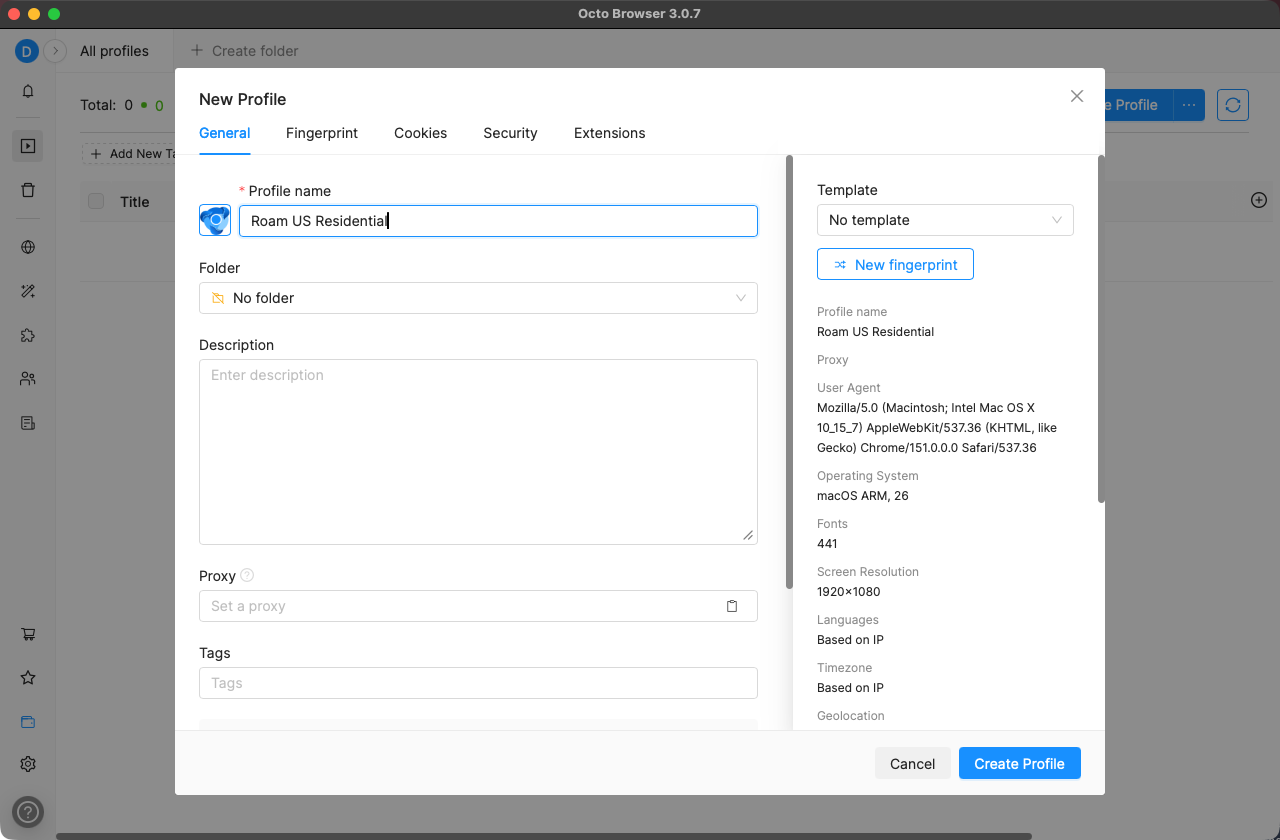
Languages, Timezone and Geolocation already read "Based on IP".Step 3 — Enter the Roam proxy
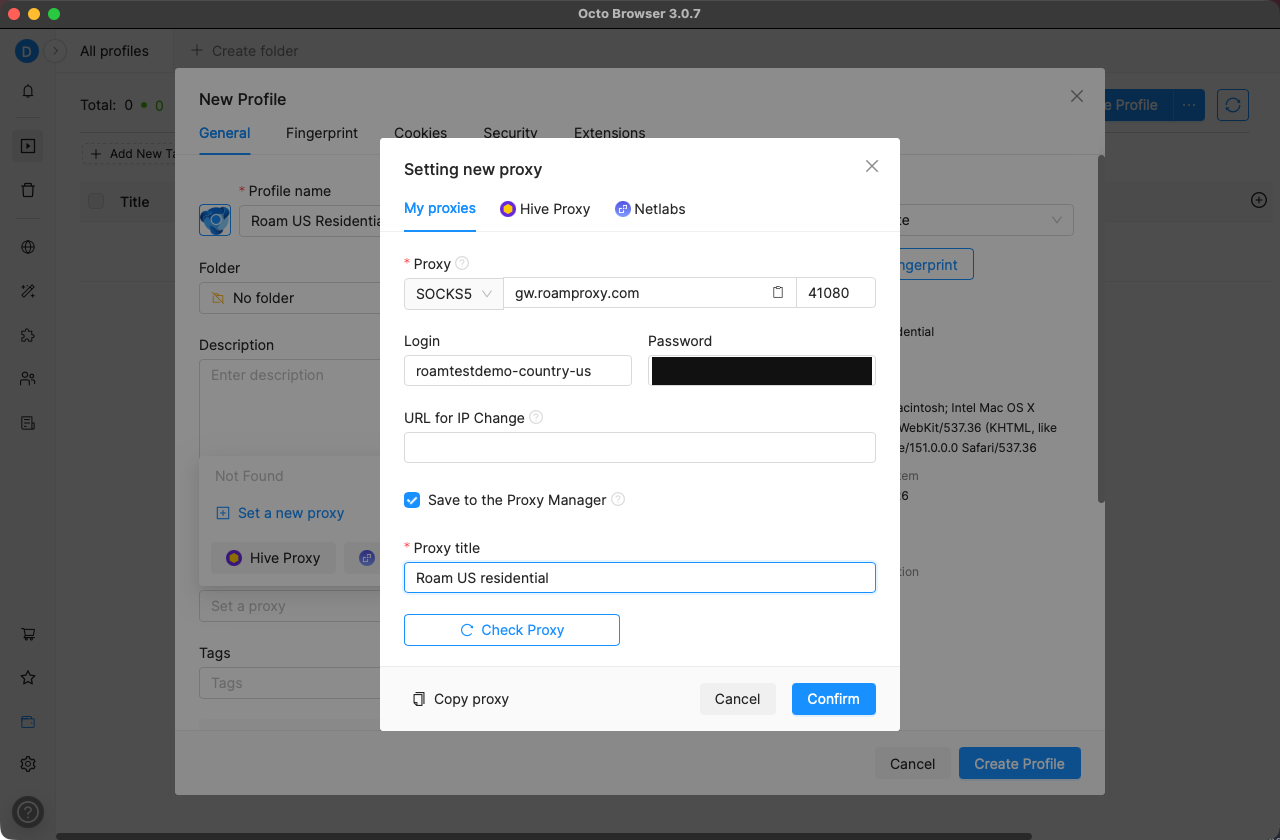
Scroll down to Proxy and click the field, then choose Set a new proxy. Unlike browsers that take one pasted line, Octo uses separate boxes — fill them in this order:
- Protocol:
SOCKS5(Octo's default) orHTTP— both work on the same Roam port - Host:
gw.roamproxy.com· Port:41080(the small box to the right of the host field) - Login:
yourname-country-us· Password: your Roam proxy password - URL for IP Change is for rotation-on-demand endpoints — leave it empty for Roam; stickiness is controlled by the username token instead.
Tick Save to the Proxy Manager if you plan to reuse this proxy across profiles. It's worth doing, with one gotcha: ticking it makes a new Proxy title field appear and that field is required, so the dialog grows and the buttons shift down. Fill in a label — we used "Roam US residential" — before reaching for Check.
Step 4 — Test the proxy
Click Check Proxy. Octo runs a live request and, on success, prints a toast reading "Proxy connection succeeded" plus the exit IP with a country flag next to the button. Ours returned a US IP on the first click — Octo doesn't need the retry that some other antidetect browsers do. If it fails, the fastest way to isolate whether it's the browser or the credentials is a terminal check: curl -x http://user:pass@gw.roamproxy.com:41080 https://ipinfo.io/json.
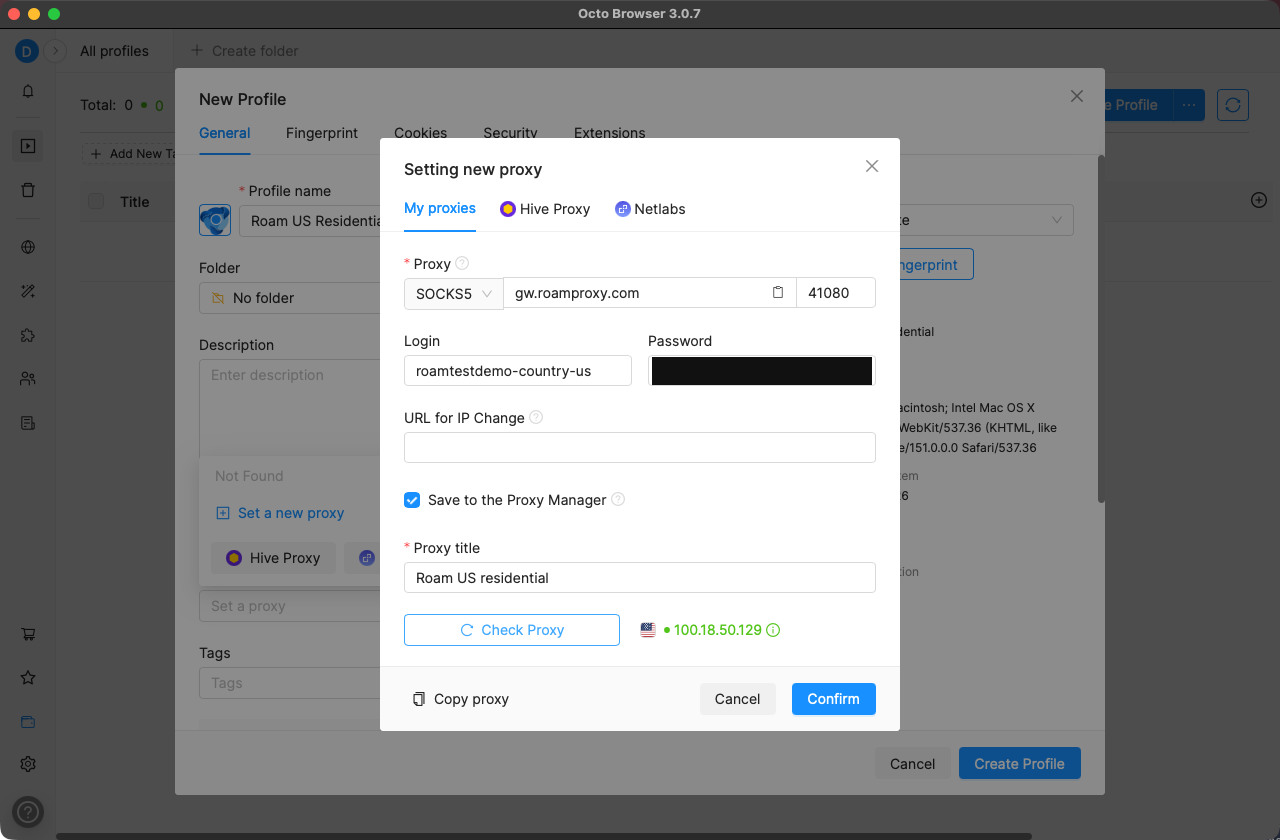
Click Confirm to attach the proxy to the profile — the Summary panel now lists it under Proxy — then Create Profile. The profile appears in the list with its proxy title and endpoint shown in the Proxy column, so you can see at a glance which profile leaves from where.
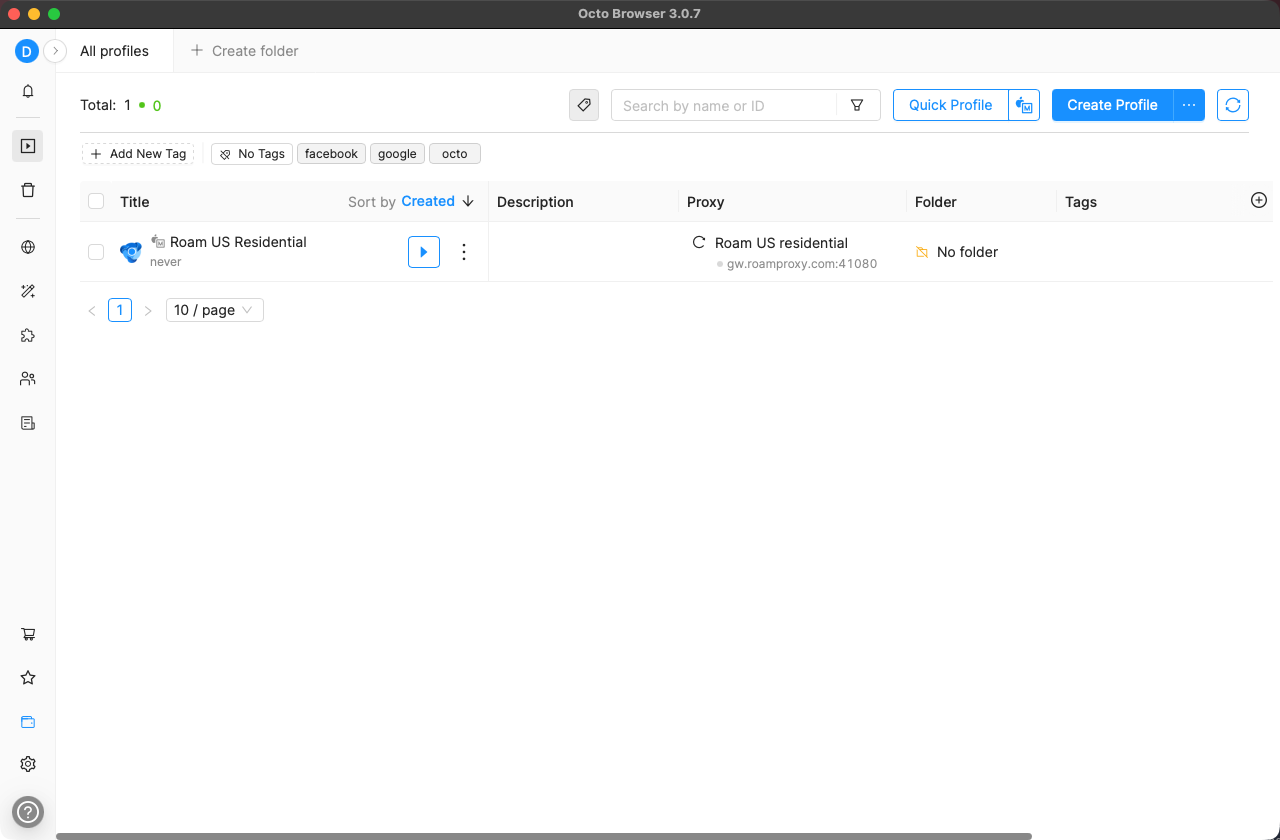
gw.roamproxy.com:41080 shown in the Proxy column.Step 5 — Open and verify the exit
Press the play button on the profile row. Octo launches its profile browser with the profile's fingerprint and routes it through the proxy. Visit an IP checker such as browserleaks.com/ip and confirm the exit is a real consumer ISP in your chosen country — not a hosting provider. Our run resolved to 68.161.187.30 in New York: Verizon Business / Verizon Online LLC on AS701, hostname pool-68-161-187-30.nycmny.fios.verizon.net. Two details are worth reading closely. BrowserLeaks labels the Usage Type as Cable/DSL / Residential outright, and the fios.verizon.net hostname marks it as a consumer fibre line — exactly what an anti-bot system expects a human to be on. The browser's own clock also matched: local time showed -0400 and timezone America/New_York, i.e. Octo's "Based on IP" fingerprint had correctly followed the proxy rather than our machine's real Pacific timezone. IPv6 shows n/a, so nothing leaked around the proxy on that path.
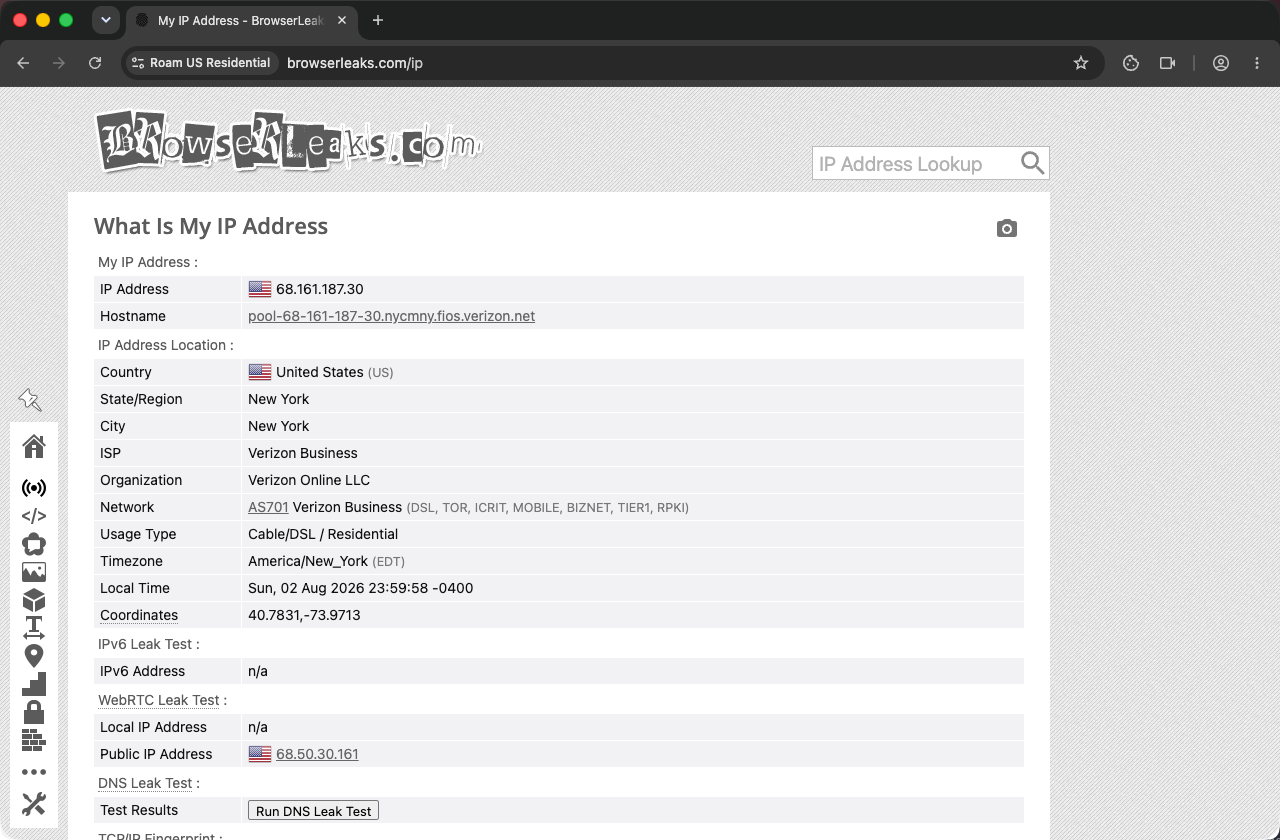
Usage Type: Cable/DSL / Residential.One honest note on the WebRTC row, because it surprises people. On a rotating gateway, the WebRTC public address does not have to equal the HTTP exit — connections are assigned exits independently. In our run the page reported 68.50.30.161 there, a Comcast residential line in Indiana, while the HTTP exit was the Verizon line in New York. Neither is our real address, which is the property that actually matters: the local WebRTC IP read n/a and our true ISP appeared nowhere on the page. If you want both to resolve to a single IP — worth doing for accounts you keep — pin the session as described next.
Rotate or keep the IP
The -session-<id> token in the username controls stickiness. Keep it identical and the profile reuses the same residential IP every launch — which is what you want for accounts you sign into repeatedly, and what makes the WebRTC and HTTP addresses line up. Drop or change it and every connection draws a fresh IP, which is fine for scraping but will get a logged-in account challenged. For accounts you intend to hold for months, a dedicated static residential IP ($4/IP/month) is steadier still. One rule holds regardless: one profile, one exit — never point two Octo profiles at the same IP.
FAQ
What proxy format does Octo Browser expect?
Separate fields, not one pasted line: a protocol dropdown (SOCKS5 or HTTP), a host box, a small port box to its right, then Login and Password. For Roam that's host gw.roamproxy.com, port 41080, login yourname-country-us, and your proxy password. Both protocols work on port 41080.
Why did a Proxy title field suddenly appear and become required?
Because you ticked Save to the Proxy Manager. Saving a proxy for reuse needs a label, so Octo reveals a required Proxy title field and the dialog re-flows — which also nudges the Check Proxy and Confirm buttons downward. Type a name, then continue.
Does Octo Browser have a free plan?
Not a permanent one — on a new account, Create Profile opens the "Choose your plan" screen. Octo does send a promo code for a free 2-day Starter trial by email shortly after registration; enter it under Have a promo code? on that screen and profiles unlock right away. Every screenshot in this guide was taken on that trial.
Why does WebRTC show a different IP than my proxy exit?
Because a rotating residential gateway assigns exits per connection, so the WebRTC path can land on a different IP in the same pool than your HTTP traffic. That is not a leak of your real address — check that the WebRTC local IP reads n/a and that your own ISP appears nowhere on the page. To make both resolve to one address, add a fixed -session-<id> token to the username, or use a dedicated static residential IP.
How do I give each Octo profile its own IP?
Use a different -session-<id> token per profile. Each token maps to its own sticky residential IP, so no two profiles ever share an exit. For long-lived accounts, assign a dedicated static residential IP instead.
How much does it cost to test Octo Browser + Roam?
Very little, though Octo's window is short. Octo's emailed trial gives 2 days of the Starter plan, and Roam starts from a $2 top-up with +50% on your first top-up — more than enough to create a profile, run Check Proxy and confirm your residential exit IP before you scale up. After that Roam is $2/GB metered, no subscription.
Give every Octo Browser profile a real residential exit: get started from $2 — your first top-up gets +50%, then $2/GB metered with no subscription. Related: Dolphin{anty} proxy setup · MoreLogin proxy setup · AdsPower proxy setup · Multilogin proxy setup.